

Increase Outlook Attachment Size Limit
You may get the following error message:
Delivery has failed to these recipients or groups:
You r message is larger than the size limit for messages. Please make it smaller and try sending it again.
The following are the steps to bypass Outlook`s file attachment restrictions and send large file.
1. Press Windows+R.
2. In the Run dialog box, type regedit and press OK

According to Outlook version and navigate the registry tree:
Outlook 2019 and 2016: Computer/HKEY_CURRENT_USER/Software/Microsoft/Office/16.0/Outlook/Preferences
Outlook 2013: Computer/HKEY_CURRENT_USER/Software/Microsoft/Office/15.0/Outlook/Preferences
Outlook 2010: Computer/HKEY_CURRENT_USER/Software/Microsoft/Office/14.0/Outlook/Preferences

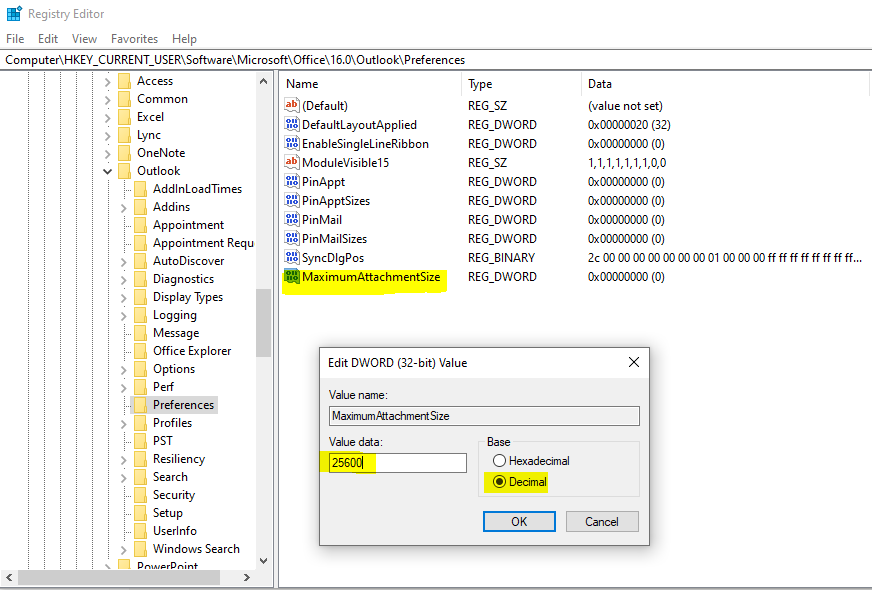
3. Double-click the MaximumAttachmentSize value.
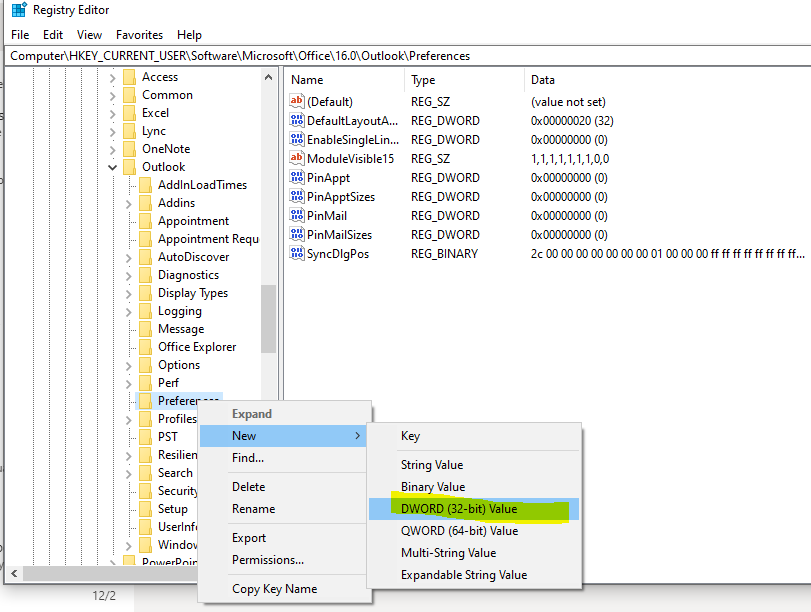
Note: If you don`t see MaximumAttachmentSize, add a registry key and value. Go to Edit, select New > DWORD Value, enter MaximumAttachmentSize, and press Enter.
4. In the Value data text box, enter the desired attachment size limit in KB. In this case 25 MB is: 25 x 1024 KB = 25600 KB.
Note: The default value (when MaximumAttachmentSize is not present) is 20 MB or 20480.
5. Select OK. Close the Registry Editor