Check your IP address via command prompt for Windows
Author: Kassan10 Posted: 9 May 2020 Viewed: 9894 times Tag: #Windows 10
Check your IP address via command prompt
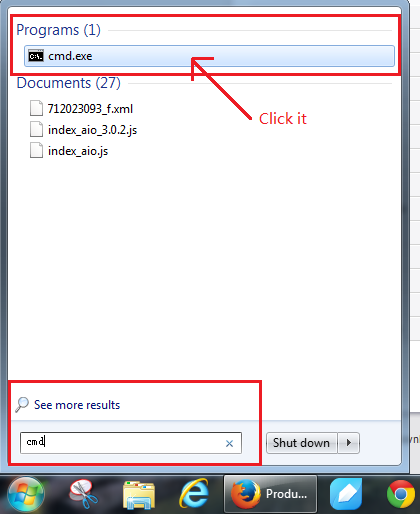
Click on the Windows button on the bottom left of your screen
Start typing “cmd” into the "Start search" box on the bottom near the button
Click on the “cmd” under programs to open the command prompt
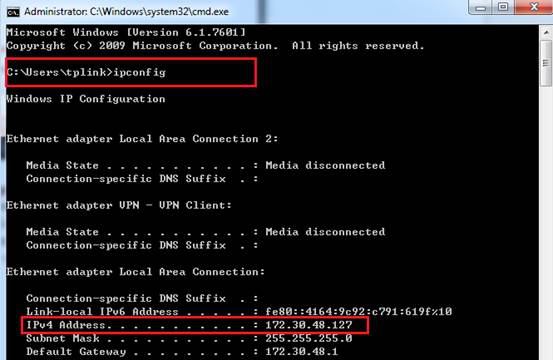
Type “ipconfig” and press enter and look for “IPv4 Address” under either Wireless Network Connection or Local Area Connection (depending on if your computer is using Wi-Fi or not).